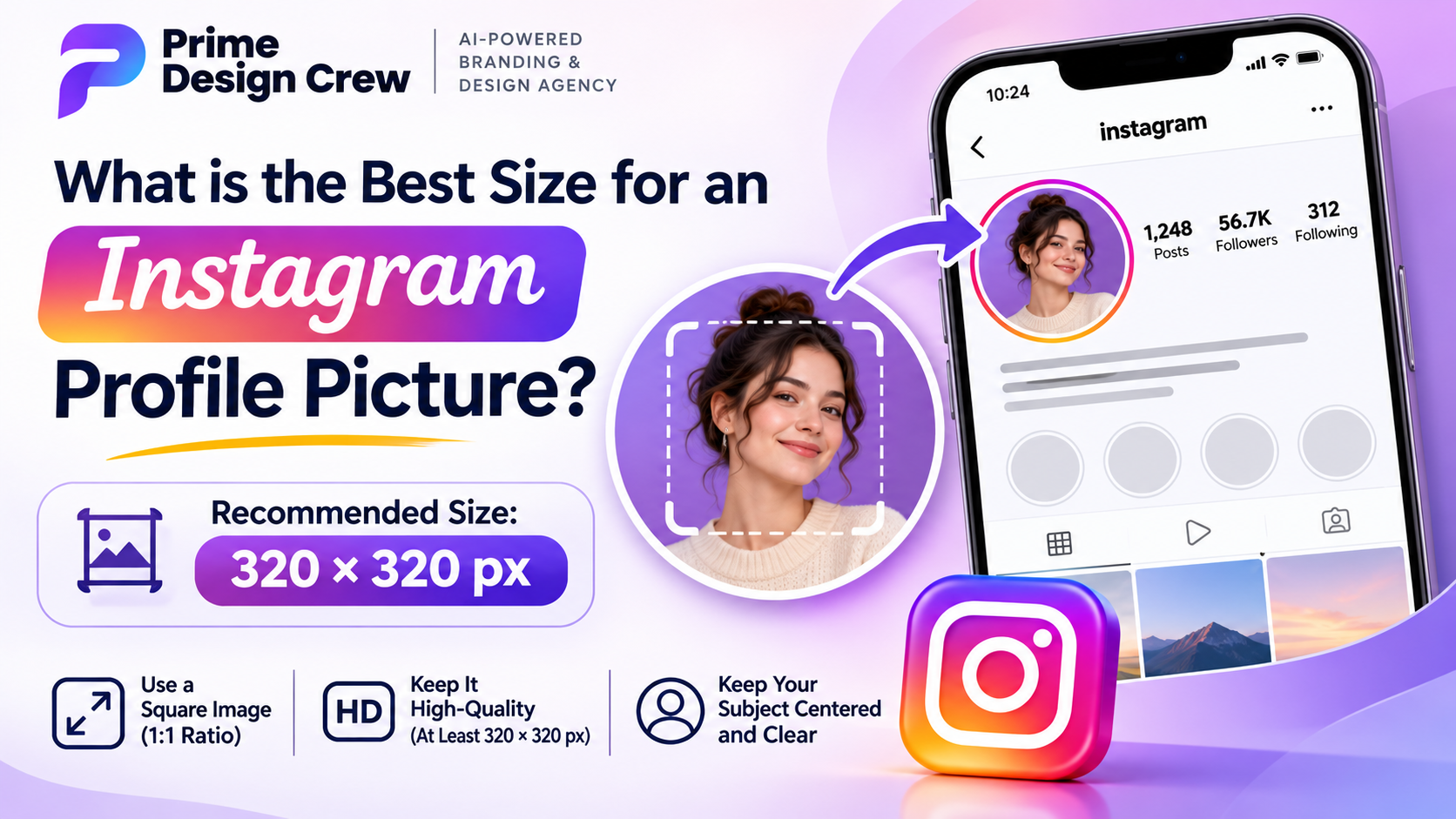
Your Instagram profile photo serves as your primary identity mark. It displays beside every single comment you write on Instagram. It frames every Story video and post you share online. Potential followers analyze that tiny picture long before reading bios.
Many creators upload low-quality images that look very blurry. Logos end up cropped poorly due to circle frame restrictions. Detailed artwork quickly turns into an unreadable mess on mobile. You must master dimensions to avoid common image upload traps.
This comprehensive guide explains the best size for Instagram profile picture. You will learn about safe zones and file export setups. Follow these clear steps to achieve crisp profile pictures easily.
Technical Specifications: Dimensions, Ratios, Display Sizes
You need to know how Instagram processes image files daily. Understanding differences between upload size and screen display size helps. Instagram compresses uploaded images to fit various mobile device screens. Small uploads stretch out badly and look blurry on phones. Oversized files cause harsh compression artifacts to appear on screens.
Key Technical Parameters Defined
Minimum Upload Size: 320 x 320 pixels Optimal Upload Size: 1080 x 1080 pixels
Aspect Ratio: 1:1 Square Format Mobile Display Size: 110 x 110 pixels
Desktop Display Size: 180 x 180 pixels Recommended File Format: PNG or High-Quality JPG
Understanding precise technical parameters ensures optimal image display across devices.
· Minimum Upload Size: Three hundred twenty by three hundred twenty pixels minimum. This standard prevents severe pixelation issues on small phone screens.
· Optimal Upload Size: One thousand eighty by one thousand eighty pixels works. This dimension delivers outstanding image clarity on retina display screens.
· Aspect Ratio: One-to-one square aspect ratio remains mandatory. Square canvas layout prevents weird stretching during your image uploads.
· Mobile Display Size: One hundred ten by one hundred ten pixels display. Mobile feeds render tiny pictures inside small comment section areas.
· Desktop Display Size: One hundred eighty by one hundred eighty pixels web. Larger desktop monitor screens reveal low-resolution graphic errors easily.
· Story Ring Display Size: One hundred ten to one hundred fifty pixels total. Active Story rings wrap colorful borders around your circular image.
· Supported File Formats: PNG and high-quality JPG formats work perfectly. Use PNG for sharp vector logos and detailed line art.
· Maximum Upload File Size: Eight megabytes maximum file size limit exists. Smaller files upload faster and avoid heavy quality-reducing compression errors.
Why 1080 × 1080 Pixels Remains Best Size for Instagram Profile Picture
Instagram stores profile photos at three hundred and twenty pixel widths. However, exporting source canvas graphics at higher dimensions offers benefits. High-density smartphone displays feature ultra-sharp pixel display capabilities. High-resolution source files preserve crisp lines when scaled down. Digital platform requirements scale upward as mobile screen technology advances. Designing square graphics at large scales keeps your assets futureproof. A single high-resolution square graphic works across multiple channels. You can reuse assets on LinkedIn, WhatsApp, and TikTok easily.
Mastering Circular Safe Zone Rules
Ignoring circular mask rules causes major profile picture design mistakes. Traditional square images get trimmed into circles by Instagram system algorithms. Corner regions of your square canvas get cut off completely. Text spanning full layout widths will suffer cut-off edges. Headshots framed close to top corners lose hair details instantly.
Applying the 80% Safe Zone Rule
Keep critical visual subject details inside central eighty percent circles.
Proper framing techniques keep headshots looking balanced within circular frames. Leave roughly ten percent empty space above your head position. Center your chin near lower middle sections of circular frames.
Business logos require generous margin spacing around outer text letters. Scale down full wordmark logos to fit inner circle boundaries.
Designing High-Converting Profile Images
Profile pictures must communicate clearly inside tiny mobile display spaces. Effective design techniques improve visual impact on mobile application feeds.
Simplifying Business Logos for Micro Scales
Detailed corporate brand logos translate poorly onto tiny smartphone screens. Full company names and long taglines become unreadable pixel blobs.
· Use Logomarks or Monograms: Switch from full text to simple icon graphics instead. Use clean icon symbols to represent your primary brand identity.
· Thicken Fine Line Details: Thick graphic lines render much better than thin lines. Bold graphic shapes maintain crisp contrast across low-resolution screens.
Optimizing Personal Headshot Photography
Human facial photos build stronger audience trust than abstract graphics.
· Maintain Direct Eye Contact: Choose photos where subjects look straight into camera lenses. Direct eye contact creates strong psychological connections with new viewers.
· Frame Subjects Close: Avoid using full body photos for profile picture uploads. Frame shots from upper chest regions up to facial features.
· Utilize High Contrast Backgrounds: Separate subjects from background scenery using strong contrasting colors. Bright solid background tones make photos stand out on screens.
Managing Active Instagram Story Rings
Active Instagram Story posts create colorful gradient border rings around pictures. Dark background edges blend awkwardly into active Story ring borders. Leaving clean margin spacing prevents visual conflict with ring borders.
Step-by-Step Workflow for Profile Pictures
Follow this simple production process to build sharp profile graphics.
Set Up Canvas Dimensions
Create a new design canvas measuring 1080 by 1080 pixels.
Apply Circular Mask Overlay
Place a circular template layer over your square canvas layout. Position all key visual elements strictly inside the circular frame areas.
Adjust Lighting and Contrast
Increase image brightness levels slightly for better mobile screen viewing. Boost graphic contrast values to enhance small detail visibility online.
Export Image as PNG
Save finished graphic assets using high-quality PNG format settings. Lossless file export prevents messy compression artifacts around text edges.
Upload Picture to Instagram
Open Instagram application settings and navigate to profile editing screens. Select your exported photo file and confirm final circular alignment.
Troubleshooting Common Picture Upload Mistakes
Resolving Blurry Profile Photo Displays
Low-resolution uploads under three hundred pixels cause blurry displays. Oversized file sizes trigger aggressive Instagram compression algorithms during uploads. Re-export your graphic file as a 1080-pixel PNG.
Fixing Misaligned Off-Center Photos
Uploading rectangular image assets creates alignment issues on profile pages. Crop your original raw image into square format before uploading.
Correcting Muted Washout Picture Colors
Color profile conflicts cause bright picture colors to look dull. Web applications require images formatted in sRGB color space models. Export graphics using sRGB color profiles to ensure color accuracy.
Frequently Asked Questions
What exact resolution works best for Instagram profile pictures?
Always upload square images measuring 1080 by 1080 pixels. This resolution keeps pictures looking extremely crisp on all displays.
Should I save profile pictures as PNG or JPG?
PNG format works best for logos and sharp graphic art. High-quality JPG format works well for standard realistic headshots.
How do I stop logos from getting cut off?
Keep important graphic elements inside the inner eighty percent circle. Leave generous margin space around all edges of your canvas.
Can I upload rectangular photos as my profile picture?
Yes, but Instagram forces you to crop rectangular files manually. Crop images into square formats before uploading for best results.
Why do profile photos look blurry on desktop web browsers?
Desktop screens display profile pictures much larger than mobile phones. Low-resolution uploads stretch out on desktop screens and blur.Your Instagram profile photo serves as your primary identity mark. It displays beside every single comment you write on Instagram. It frames every Story video and post you share online. Potential followers analyze that tiny picture long before reading bios.
Many creators upload low-quality images that look very blurry. Logos end up cropped poorly due to circle frame restrictions. Detailed artwork quickly turns into an unreadable mess on mobile. You must master dimensions to avoid common image upload traps.
This comprehensive guide explains the best size for Instagram profile picture. You will learn about safe zones and file export setups. Follow these clear steps to achieve crisp profile pictures easily.
Technical Specifications: Dimensions, Ratios, Display Sizes
You need to know how Instagram processes image files daily. Understanding differences between upload size and screen display size helps. Instagram compresses uploaded images to fit various mobile device screens. Small uploads stretch out badly and look blurry on phones. Oversized files cause harsh compression artifacts to appear on screens.
Key Technical Parameters Defined
Minimum Upload Size: 320 x 320 pixels
Optimal Upload Size: 1080 x 1080 pixels
Aspect Ratio: 1:1 Square Format
Mobile Display Size: 110 x 110 pixels
Desktop Display Size: 180 x 180 pixels
Recommended File Format: PNG or High-Quality JPG
Understanding precise technical parameters ensures optimal image display across devices.
· Minimum Upload Size: Three hundred twenty by three hundred twenty pixels minimum. This standard prevents severe pixelation issues on small phone screens.
· Optimal Upload Size: One thousand eighty by one thousand eighty pixels works. This dimension delivers outstanding image clarity on retina display screens.
· Aspect Ratio: One-to-one square aspect ratio remains mandatory. Square canvas layout prevents weird stretching during your image uploads.
· Mobile Display Size: One hundred ten by one hundred ten pixels display. Mobile feeds render tiny pictures inside small comment section areas.
· Desktop Display Size: One hundred eighty by one hundred eighty pixels web. Larger desktop monitor screens reveal low-resolution graphic errors easily.
· Story Ring Display Size: One hundred ten to one hundred fifty pixels total. Active Story rings wrap colorful borders around your circular image.
· Supported File Formats: PNG and high-quality JPG formats work perfectly. Use PNG for sharp vector logos and detailed line art.
· Maximum Upload File Size: Eight megabytes maximum file size limit exists. Smaller files upload faster and avoid heavy quality-reducing compression errors.
Why 1080 × 1080 Pixels Remains Best Size for Instagram Profile Picture
Instagram stores profile photos at three hundred and twenty pixel widths. However, exporting source canvas graphics at higher dimensions offers benefits. High-density smartphone displays feature ultra-sharp pixel display capabilities. High-resolution source files preserve crisp lines when scaled down. Digital platform requirements scale upward as mobile screen technology advances. Designing square graphics at large scales keeps your assets futureproof. A single high-resolution square graphic works across multiple channels. You can reuse assets on LinkedIn, WhatsApp, and TikTok easily.
Mastering Circular Safe Zone Rules
Ignoring circular mask rules causes major profile picture design mistakes. Traditional square images get trimmed into circles by Instagram system algorithms. Corner regions of your square canvas get cut off completely. Text spanning full layout widths will suffer cut-off edges. Headshots framed close to top corners lose hair details instantly.
Applying the 80% Safe Zone Rule
Keep critical visual subject details inside central eighty percent circles.
Proper framing techniques keep headshots looking balanced within circular frames. Leave roughly ten percent empty space above your head position. Center your chin near lower middle sections of circular frames.
Business logos require generous margin spacing around outer text letters. Scale down full wordmark logos to fit inner circle boundaries.
Designing High-Converting Profile Images
Profile pictures must communicate clearly inside tiny mobile display spaces. Effective design techniques improve visual impact on mobile application feeds.
Simplifying Business Logos for Micro Scales
Detailed corporate brand logos translate poorly onto tiny smartphone screens. Full company names and long taglines become unreadable pixel blobs.
· Use Logomarks or Monograms: Switch from full text to simple icon graphics instead. Use clean icon symbols to represent your primary brand identity.
· Thicken Fine Line Details: Thick graphic lines render much better than thin lines. Bold graphic shapes maintain crisp contrast across low-resolution screens.
Optimizing Personal Headshot Photography
Human facial photos build stronger audience trust than abstract graphics.
· Maintain Direct Eye Contact: Choose photos where subjects look straight into camera lenses. Direct eye contact creates strong psychological connections with new viewers.
· Frame Subjects Close: Avoid using full body photos for profile picture uploads. Frame shots from upper chest regions up to facial features.
· Utilize High Contrast Backgrounds: Separate subjects from background scenery using strong contrasting colors. Bright solid background tones make photos stand out on screens.
Managing Active Instagram Story Rings
Active Instagram Story posts create colorful gradient border rings around pictures. Dark background edges blend awkwardly into active Story ring borders. Leaving clean margin spacing prevents visual conflict with ring borders.
Step-by-Step Workflow for Profile Pictures
Follow this simple production process to build sharp profile graphics.
Set Up Canvas Dimensions
Create a new design canvas measuring 1080 by 1080 pixels.
Apply Circular Mask Overlay
Place a circular template layer over your square canvas layout. Position all key visual elements strictly inside the circular frame areas.
Adjust Lighting and Contrast
Increase image brightness levels slightly for better mobile screen viewing. Boost graphic contrast values to enhance small detail visibility online.
Export Image as PNG
Save finished graphic assets using high-quality PNG format settings. Lossless file export prevents messy compression artifacts around text edges.
Upload Picture to Instagram
Open Instagram application settings and navigate to profile editing screens. Select your exported photo file and confirm final circular alignment.
Troubleshooting Common Picture Upload Mistakes
Resolving Blurry Profile Photo Displays
Low-resolution uploads under three hundred pixels cause blurry displays. Oversized file sizes trigger aggressive Instagram compression algorithms during uploads. Re-export your graphic file as a 1080-pixel PNG.
Fixing Misaligned Off-Center Photos
Uploading rectangular image assets creates alignment issues on profile pages. Crop your original raw image into square format before uploading.
Correcting Muted Washout Picture Colors
Color profile conflicts cause bright picture colors to look dull. Web applications require images formatted in sRGB color space models. Export graphics using sRGB color profiles to ensure color accuracy.
Frequently Asked Questions
What exact resolution works best for Instagram profile pictures?
Always upload square images measuring 1080 by 1080 pixels. This resolution keeps pictures looking extremely crisp on all displays.
Should I save profile pictures as PNG or JPG?
PNG format works best for logos and sharp graphic art. High-quality JPG format works well for standard realistic headshots.
How do I stop logos from getting cut off?
Keep important graphic elements inside the inner eighty percent circle. Leave generous margin space around all edges of your canvas.
Can I upload rectangular photos as my profile picture?
Yes, but Instagram forces you to crop rectangular files manually. Crop images into square formats before uploading for best results.
Why do profile photos look blurry on desktop web browsers?
Desktop screens display profile pictures much larger than mobile phones. Low-resolution uploads stretch out on desktop screens and blur.